
How to link song requests to DJ software
Linking song requests to DJ software means the songs you say yes to are waiting in your library before you reach for them. Here are the three ways to do it.
The SpecialRequest team · · 4 min read
Reading a request is the easy half. The slow half is finding the track. You look at your phone, memorize the title, type it into your software's search box with one hand, pick the right version and load it. Do that thirty times in a night and it adds up to a lot of minutes spent looking away from the floor.
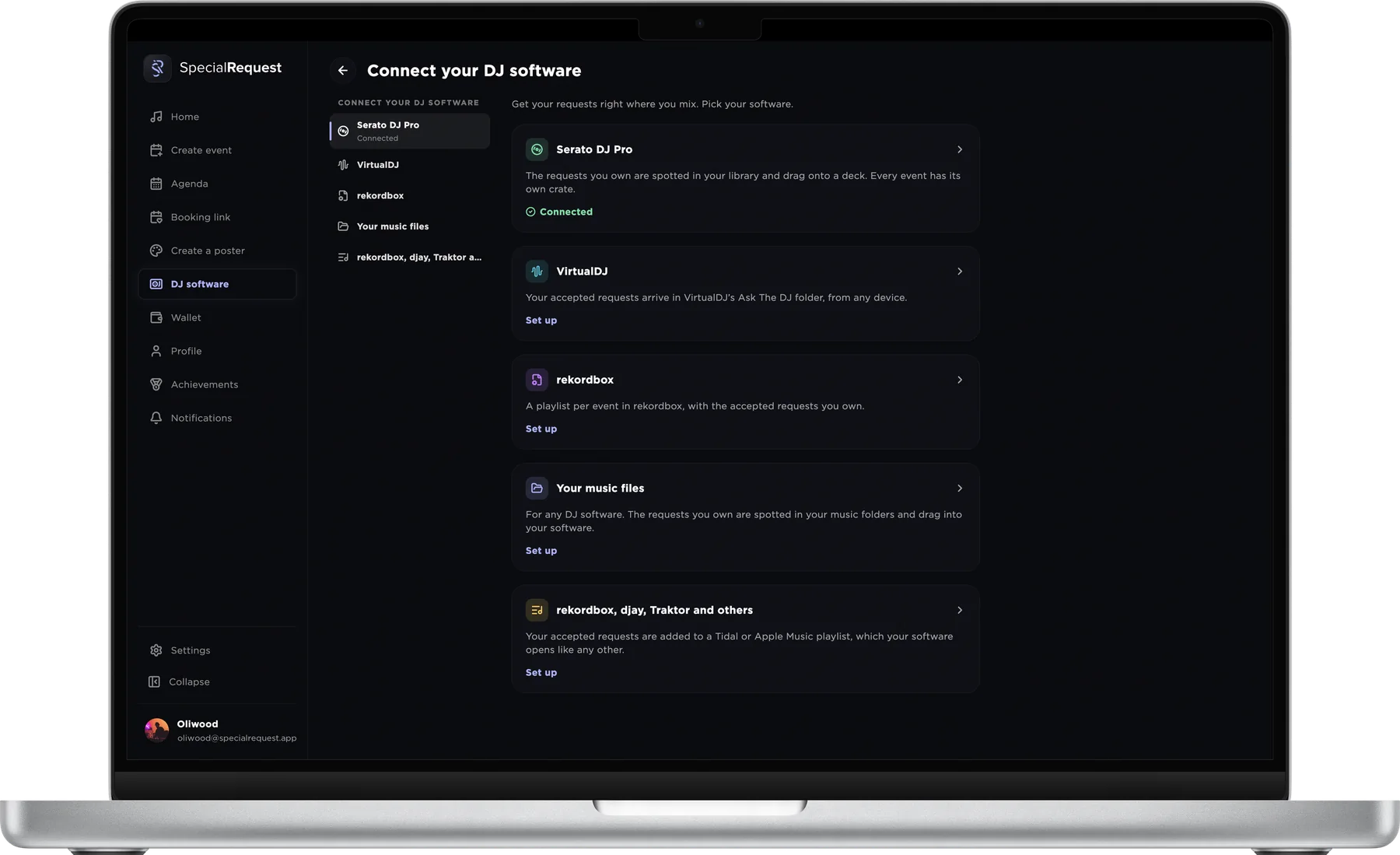
A link between your requests and your DJ software removes the typing. Which link suits you depends on one question. Do you stream your music, or do you play files you own?
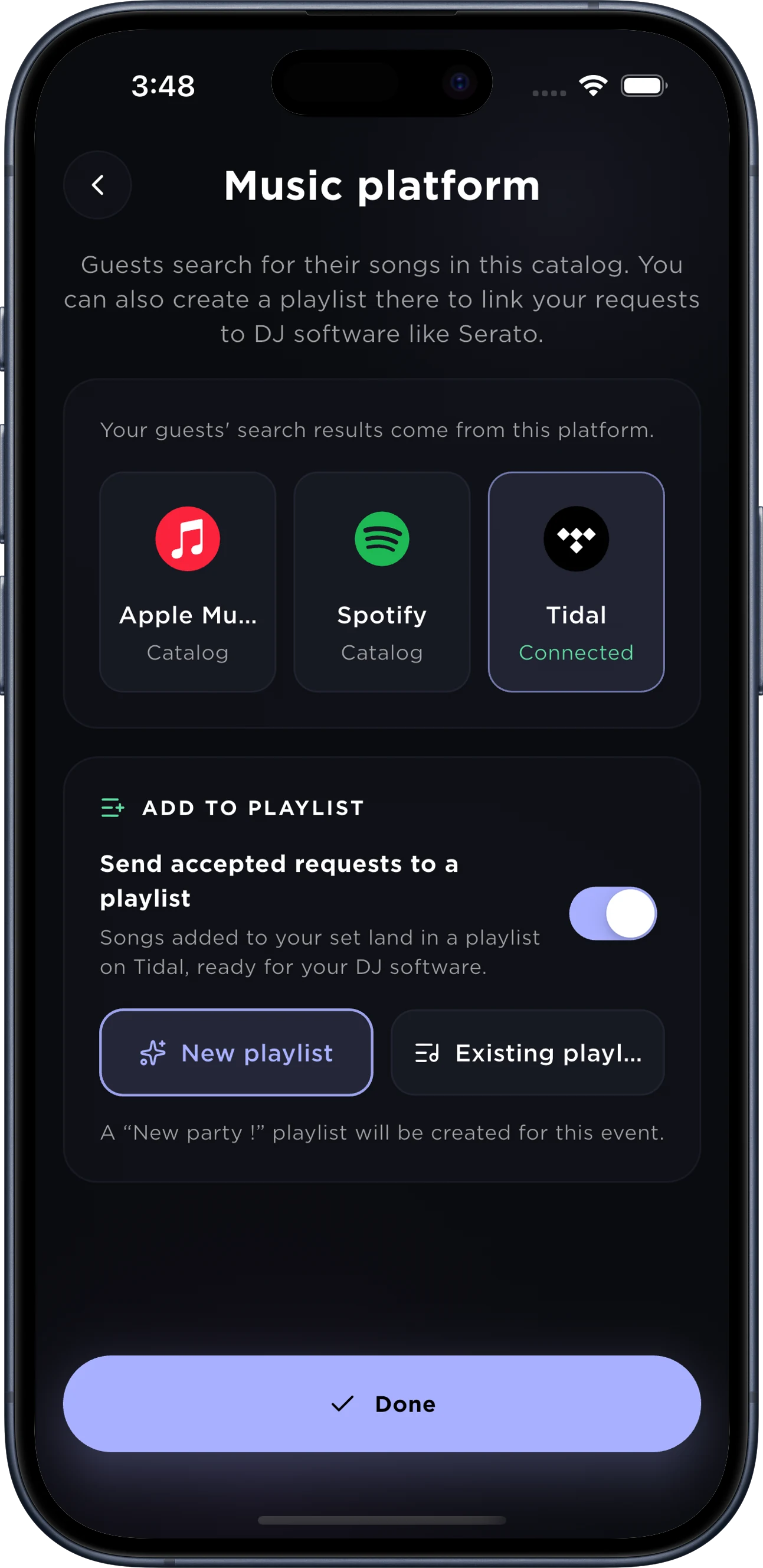
If you stream, use a playlist
Streaming DJs have the simplest route. Sign in to Tidal or Apple Music from the app, turn the playlist on for your event, and every song that goes into your set is written to a playlist on that account. Your DJ software, signed in to the same account, shows it among your other playlists.
It works with software that streams from those services, such as Serato DJ Pro, rekordbox, VirtualDJ and djay Pro. One habit to learn is reloading the playlist when a new song is missing, because your software reads it when you open it and may keep that copy. The guide on syncing your DJ software has the steps for each one.
If you play your own files, let the app find them
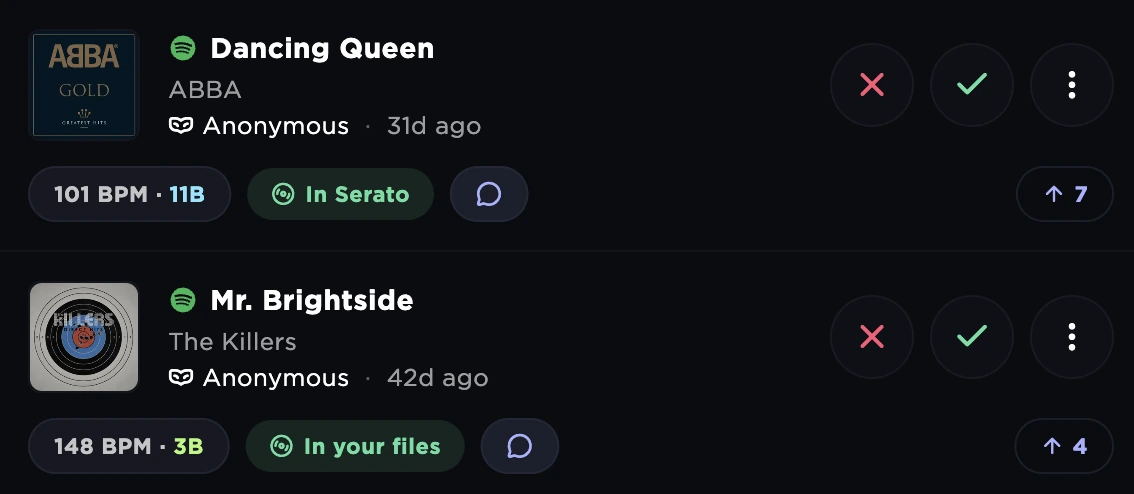
No streaming subscription is needed when your music lives on your drive. The SpecialRequest desktop app, on the Mac that runs your DJ software, looks through your Serato library or your music folders and puts a green label on each request you already own. Drag that label onto a deck or into a crate and the file follows.
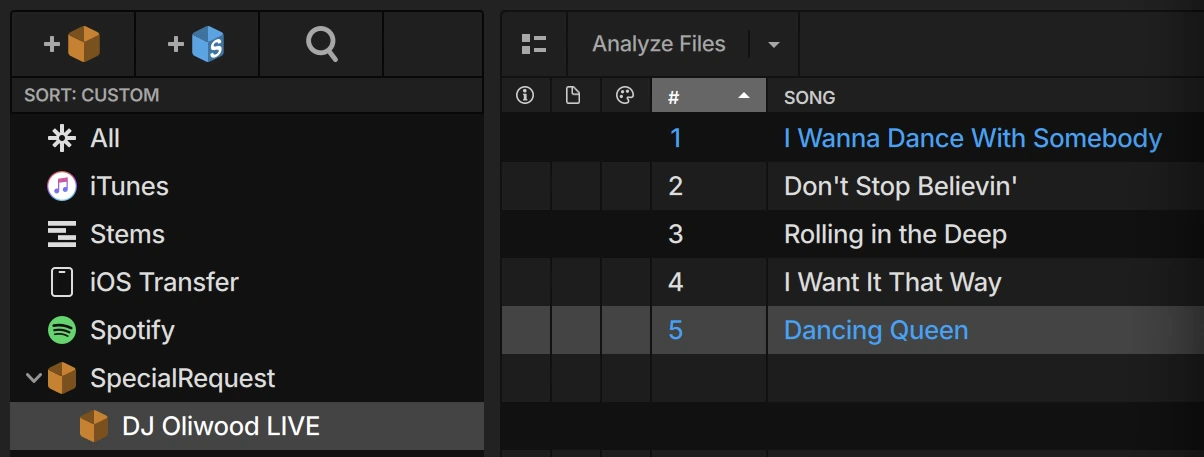
It can also do the filing for you. With Serato, every event has a crate of its own, and the requests you say yes to are added to it when you own the song. With rekordbox, they fill a playlist named after the event. The guides for Serato and rekordbox show the setup, which takes a few minutes the first time.
If you use VirtualDJ, send requests to Ask The DJ
VirtualDJ has a folder called Ask The DJ that receives messages during a set. Enter your VirtualDJ username in SpecialRequest, and each request you say yes to shows up there as artist and title, with the name of the person who asked. One click on the message searches your library for the song.
This route goes through our servers, so it works from your phone as well as from a computer. The VirtualDJ guide covers the test message that confirms everything is connected.
Which one should you pick?
Streaming from Tidal or Apple Music? Take the playlist. Playing your own files in Serato or rekordbox? Take the desktop app. On VirtualDJ? Ask The DJ is the quickest to set up. Nothing stops you from using two at once, a playlist for the songs you don't own and your files for the rest.
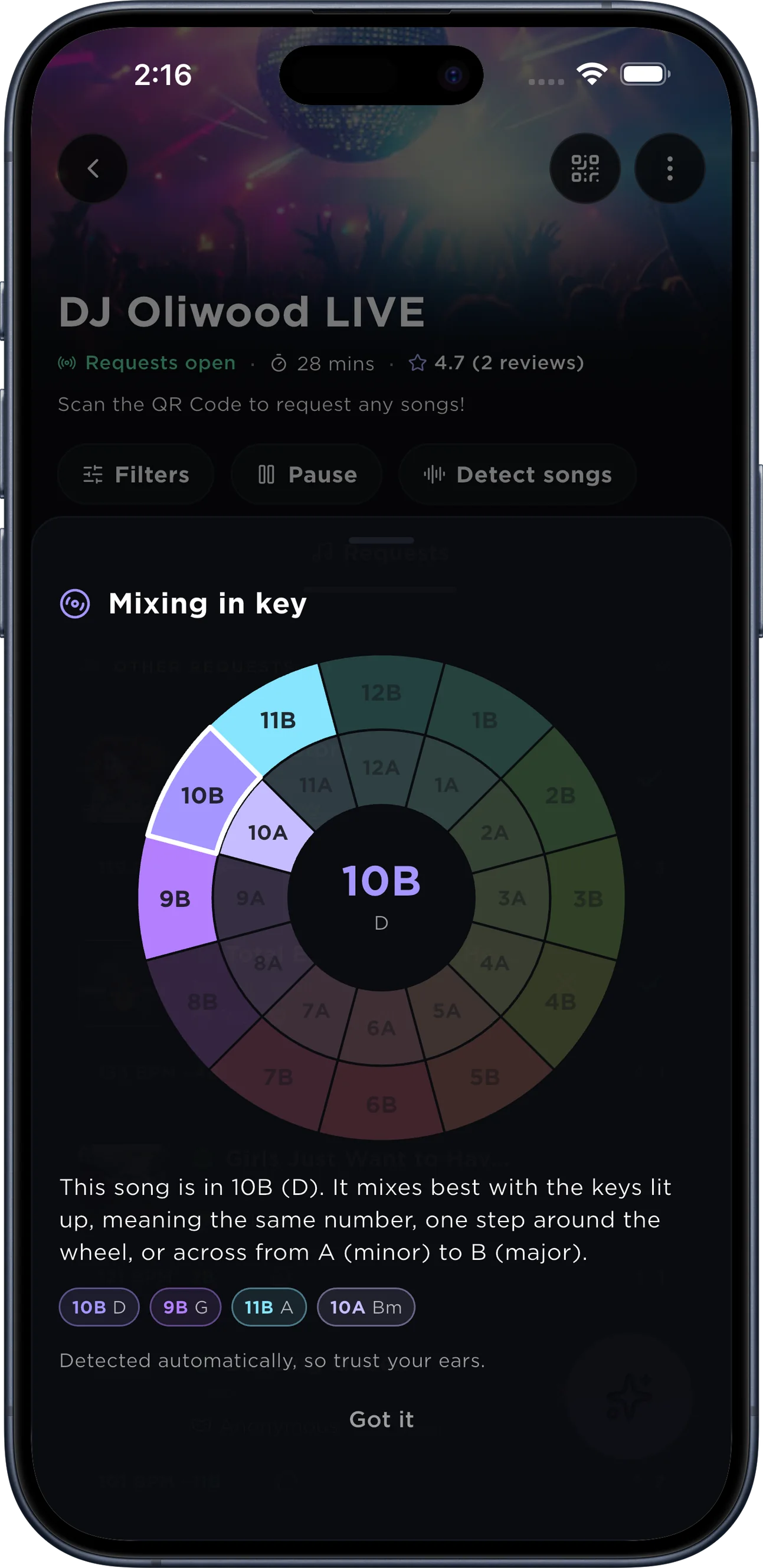
All three are part of Premium. So are each request's BPM and Camelot key, which tell you where a song fits before you load it.
Test it before the gig
Set it up at home, not at the venue. Create a test event, send yourself two requests from your own phone, accept both and watch them arrive in your software. Five minutes on a quiet afternoon beats troubleshooting in front of a full dance floor.
New to the app? Start with how to take song requests as a DJ, then come back here once requests are coming in.
Try SpecialRequest at your next event
Free to start, on iPhone, Android, Mac and the web.